


angle-graphic

Filter for Empty Fields – Customer Appreciation Summer Week 11

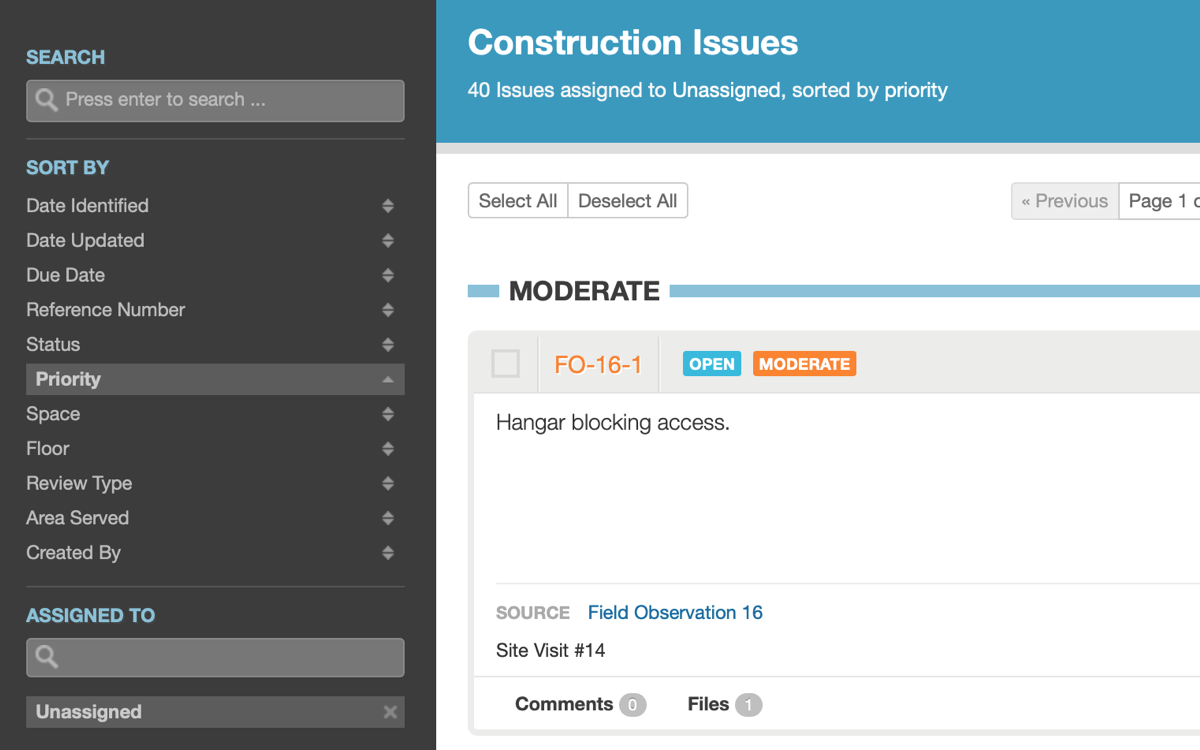
For Week 11 of Customer Appreciation Summer we’ve added the ability to filter based on when a value is not set. This makes certain actions much easier, such as finding all unassigned issues. Combined with our batch editing tools it’s now trivial to quickly audit and correct data gaps.

Easily find unassigned issues with the new filtering options

This ability (what we internally call the “none” filter) is only available when it makes sense. For example, issues always have a status and therefore don’t have a “No Status” filter. Filters that include a “none” option include assignment, discipline, priority, equipment type, system, checklist type, review type, review remark, and field observation type.

The “none” filters can be combined just like other filters. For example, you could find all equipment that either has no discipline or has discipline “Mechanical”.

Finally, we’ve also added the “none” option to these same filters in the report generator.

We hope this makes it easier to manage the data in your projects!
File Navigation Improvements – Customer Appreciation Summer Week 10

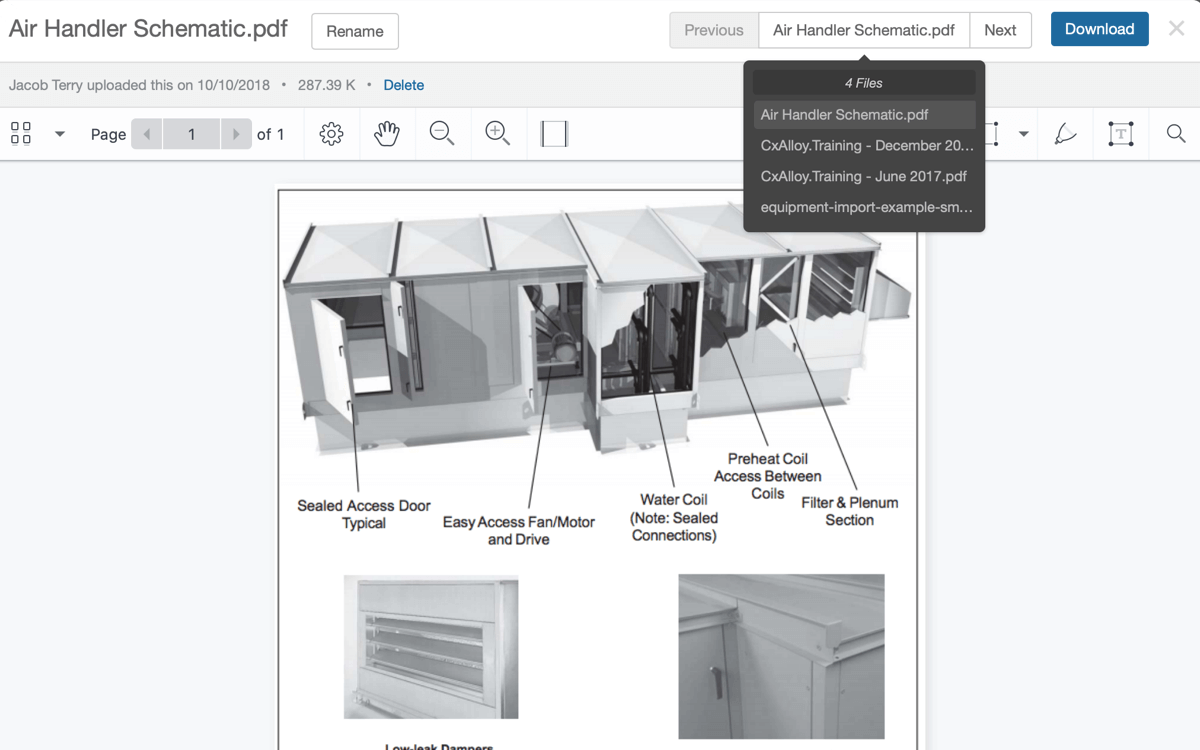
For Week 10 of Customer Appreciation Summer we have made two improvements to file navigation: we’ve added next and previous buttons so you can quickly cycle through attached photos and files, and we’ve added Select All and Deselect All buttons for attached photos and files.

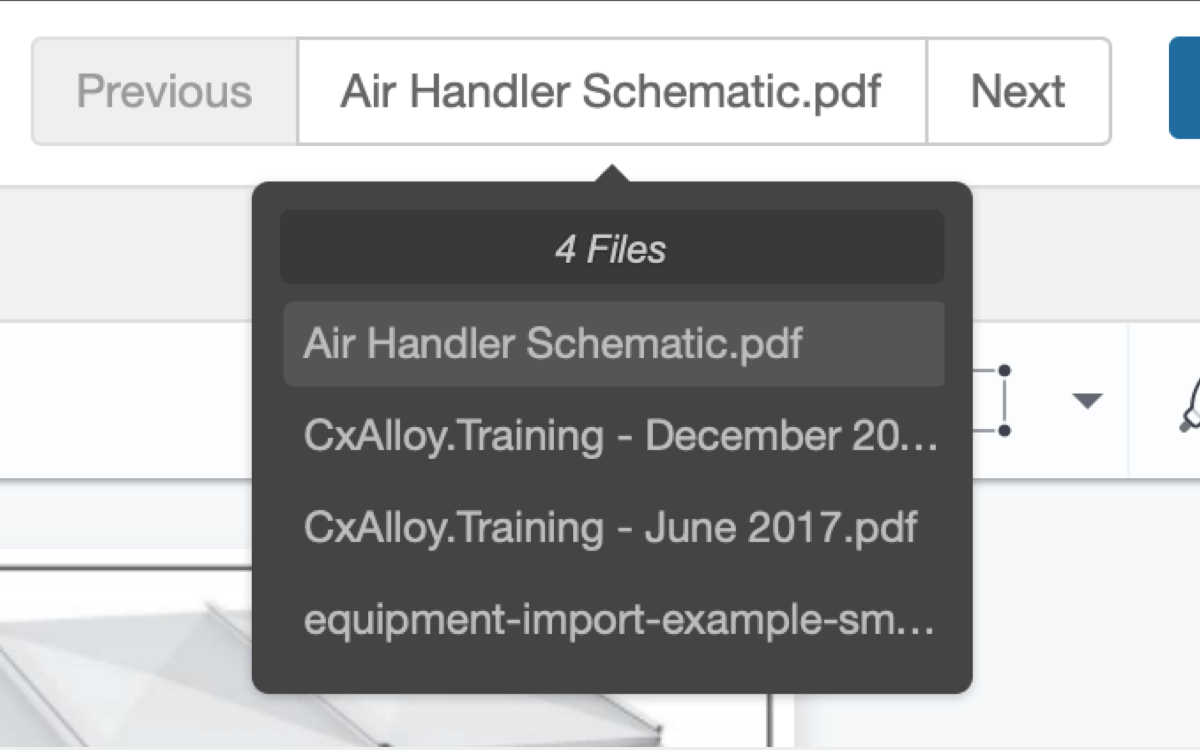
The new navigation controls allow you to move to the next or previous file in the list, or jump to any other attached file via a dropdown.

Quickly navigate between files with the new navigation controls

The new Select All/Deselect All buttons make it far easier to batch download files. We’ve also renamed the “Zip” button to “Download” (it still downloads a .zip file, though).

Easily select all attached files with the new Select All button

We hope you like these improvements!

Select Specific Items in the Report Generator – Customer Appreciation Summer Week 9

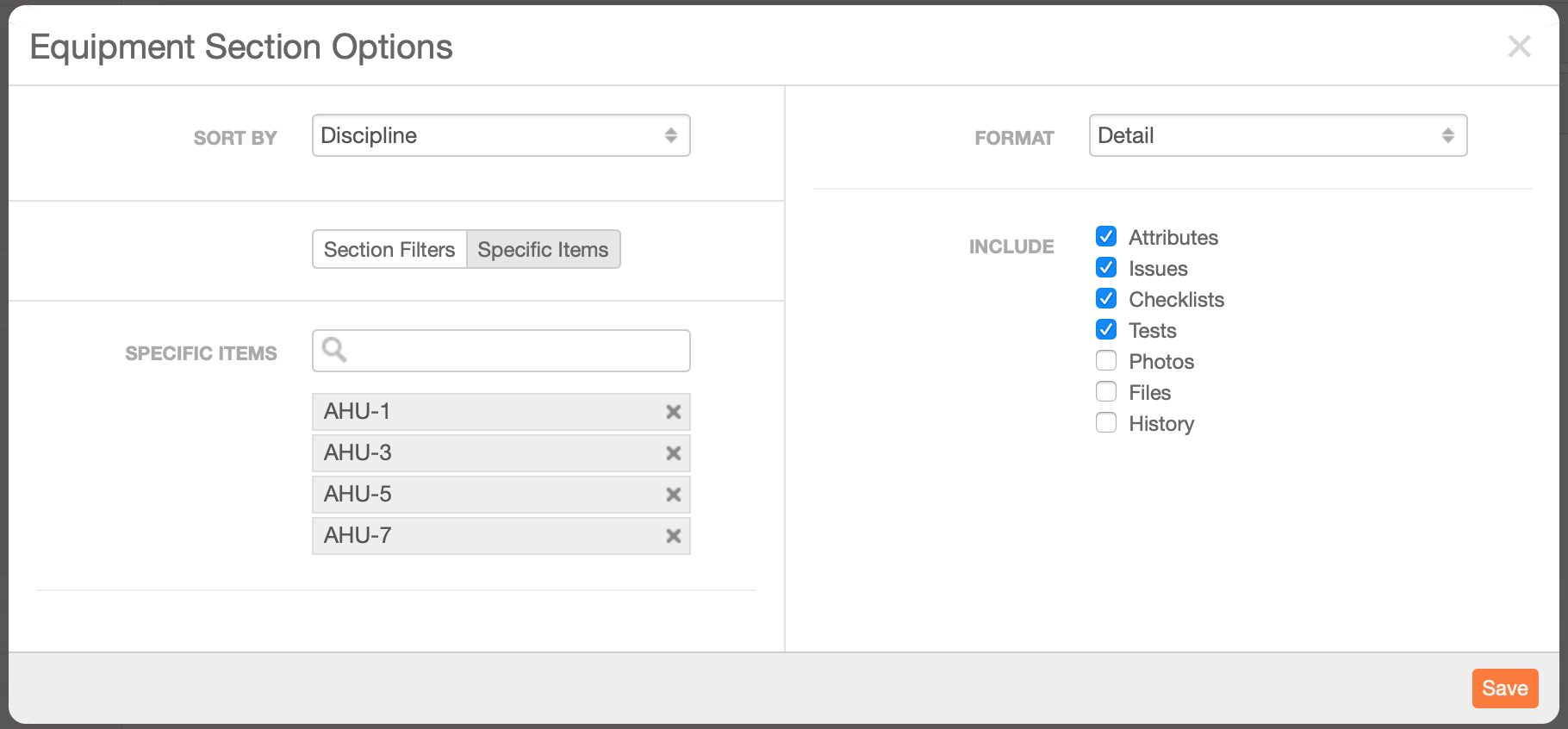
For Week 9 of Customer Appreciation Summer we’ve added new report generator options to select specific items for a section, such as specific equipment, checklists, issues, and so forth.

You can now choose specific items as an alternative to filters

Selecting specific items is an alternative to filters; you can’t combine the two. The interface reflects this with a toggle that allows you to switch between the two options.

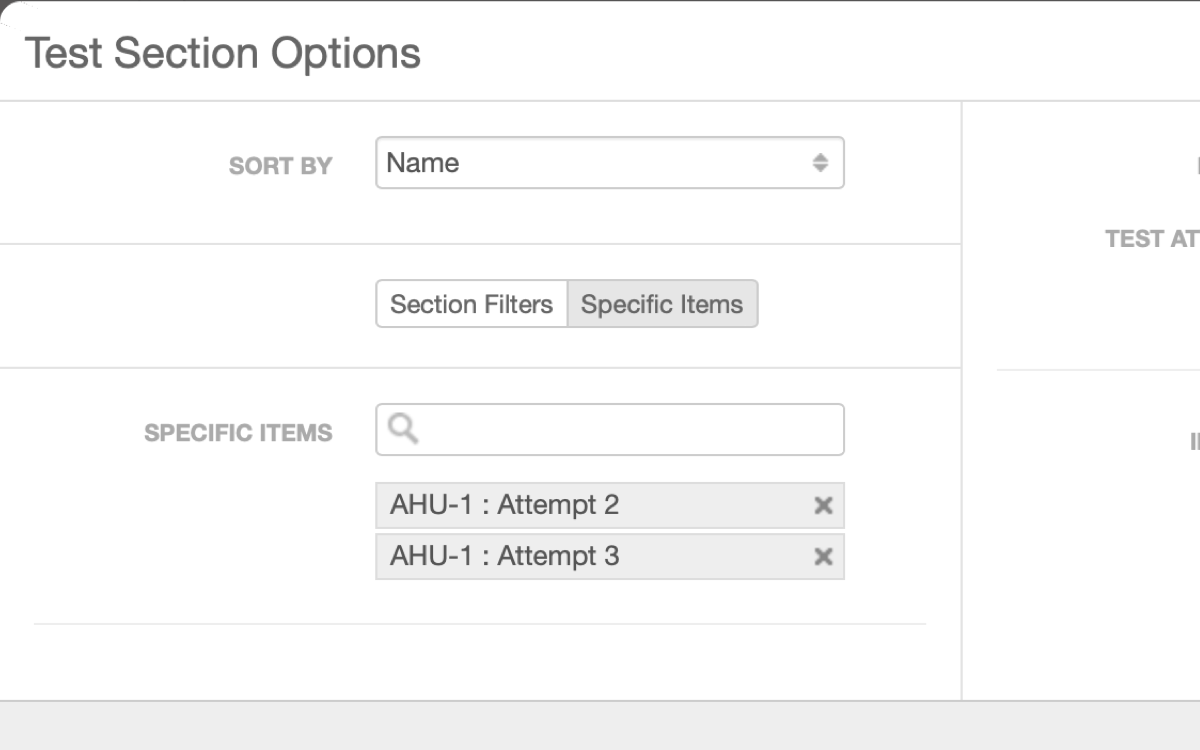
For tests we’ve done something special. The list of tests is actually a list of all attempts, allowing you to cherry-pick specific attempts to include. For example, you could select just Attempt No. 2 out of three total attempts. The resulting report would then only show Attempt No. 2 for that test. In addition, only issues, photos, files, and callouts related to Attempt No. 2 (or the overall test) would be included.

Tests give you the option to can select specific attempts

With these new options you are able to build reports that just weren’t possible previously. We hope you like it!

The End of Summer Blowout – Customer Appreciation Summer Final Weeks

Summer is drawing to a close but not without the final releases of our third annual Customer Appreciation Summer! We hit a few bumps here at the end but in the past week we’ve released our final three features: file navigation, new report generator options, and filtering for items where a field is empty.

We’ve got a quick overview of these features below and we’ll have more detailed posts on each of these throughout this week and next.

Select Specific Items in the Report Generator (Week 9)

You now have the option to select a specific set of items to include in the report generator as an alternative to filtering. With tests, you can even select specific test attempts to include.

Select the exact equipment to include with the new “Specific Items” option

File Navigation (Week 10)

You can now navigate to the next and previous file in the file viewer, or jump to any other attached file from a dropdown. Plus, we also added Select All/Deselect All buttons to file lists.

Jump to any attached file with the new file navigation

Filter for Empty Fields (Week 11)

Certain filters now allow you to look for items that don’t have a value. For example, you can filter equipment to those that have no discipline set, or filter issues by those that are unassigned. These same filters are available in the report generator as well.

Find all unassigned issues with new filter options

We hope you like these features, and we hope you enjoyed Customer Appreciation Summer! Please keep letting us know what features you would like to see in our feature request forum.

But wait! What about week 12? Well… it needs just a little more time in the oven but we are working on one final Customer Appreciation Summer feature. It’s one a lot of people have asked for. We hope you’ll look forward to it!

Commenter Role and Company – Customer Appreciation Summer Week 8

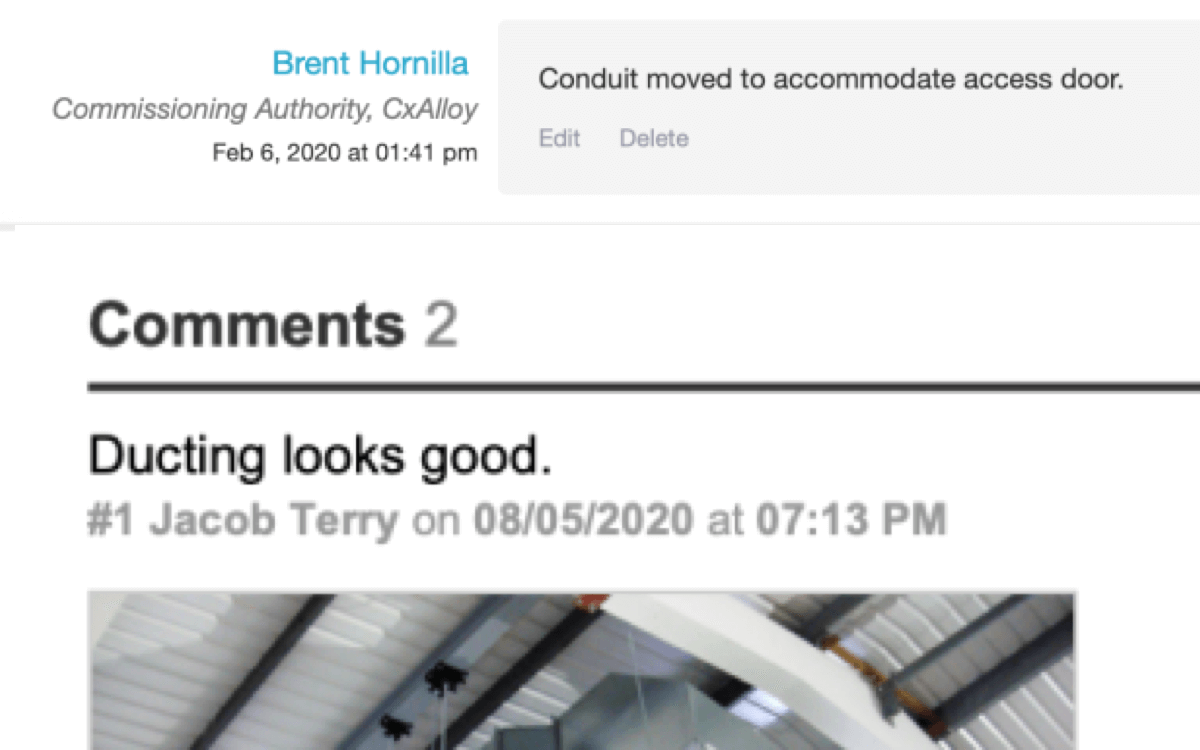
Week 8 of our Customer Appreciation Summer adds the company and role of the author to comments, both on the web and in PDFs.

Comments now show the author’s role and company.

You’ll also see this information in the next release of the iOS app later this week. That update also features the “Include Asset Name” option when creating checklists and tests that we first rolled out on the web last week.

In addition, we’ve improved the presentation of field observation comments in the PDF to make it clearer which comment photos belong to.

It’s now clearer which comment photos belong to.

As a reminder, all of these features are based on feature requests at feedback.cxalloy.com. Although we focus on smaller features during the Customer Appreciation Summer, we are also working on many of the bigger requests. If you’ve added a request, made a comment, or just voted on the ones you want, thank you – your input there has been incredibly valuable to us.

We hope you like these updates and we’ll see you next week!

Create Checklists and Tests Without Asset Names – Customer Appreciation Summer Week 7

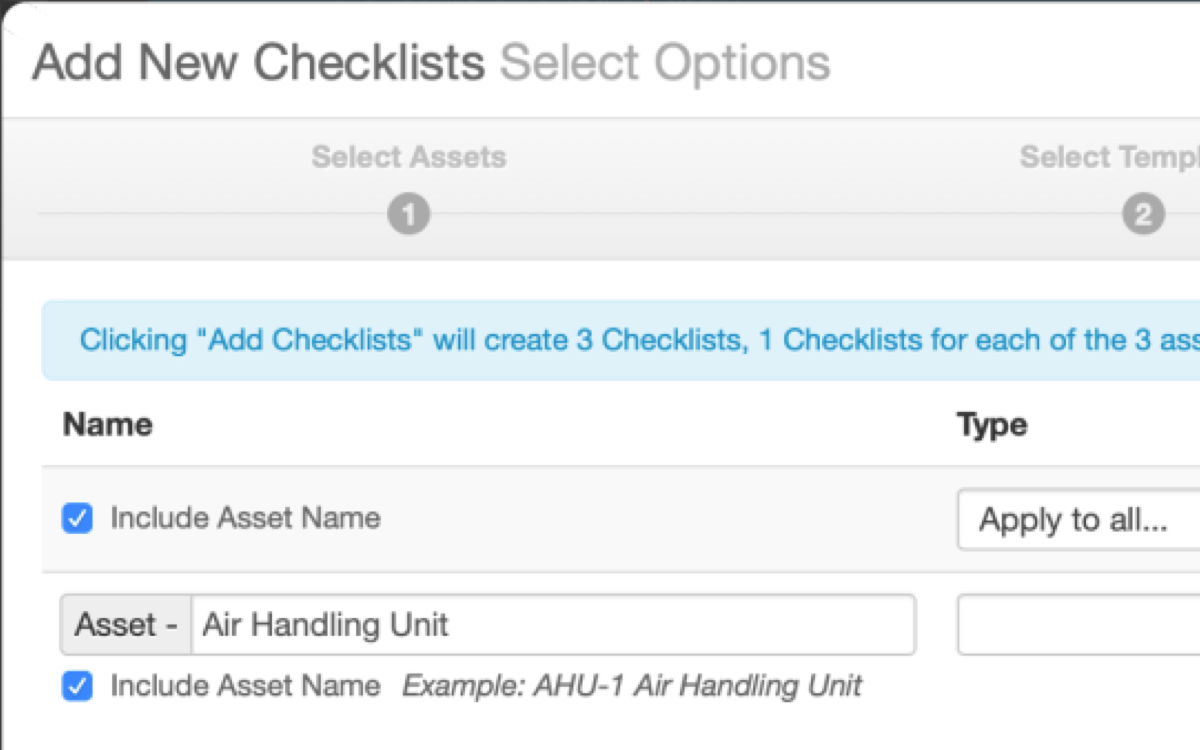
Week 7 of our Customer Appreciation Summer is all about checklists and tests. First, we’ve added a new option when creating checklists and tests: “Include Asset Name”. By unchecking this option you can create checklists and tests without their associated asset name, which was not possible before.

The new “Include Asset Name” option gives you more control

We’ve also made two other improvements to the options step – you can now change a name right away without having to click “Customize” first, and we show an example of the name the checklists or tests will be given.

In another improvement to checklists and tests you can now see the percentage of Yes, No, and N/A answers in the PDFs right next to the colored progress bar.

You don’t need to guess at the percentages anymore

We hope you like these updates. See you next week!

Navigation Improvements – Customer Appreciation Summer Week 6

We’ve improved a couple of small navigation bits for week 6 of our Customer Appreciation Summer. Though small these feature requests had a lot of customer votes behind them!

  • After creating a new checklist or test template within a folder, you will be taken to the newly created template inside that folder.
  • When adding lines to a checklist or test the “Add a line” form will remain so that you can quickly add multiple lines.

We hope you like these improvements. See you next week!

Delete Projects – Customer Appreciation Summer Week 5

The latest Customer Appreciation Summer release adds project deletion. You can now finally get rid of that project you renamed “ZZZZ Don’t Use”! 😀

You can now delete projects

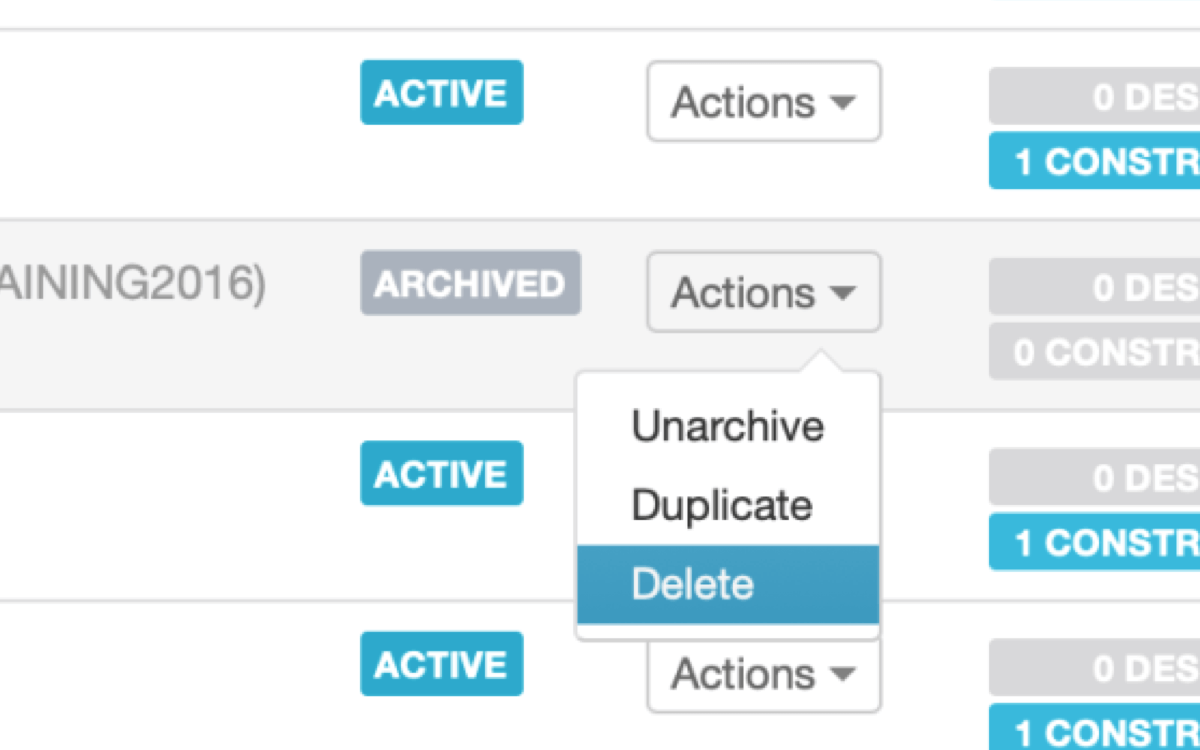
Deleting a project is as simple as clicking the “Delete” button on an account’s Projects page. It’s also available as an option in the “Actions” dropdown on the Overview page and on the General tab of the Project Settings page.

A project must be archived before it can be deleted, and only account admins can delete a project. Like most actions in CxAlloy TQ that modify data, you can undo a project deletion immediately after deleting it. If it takes you a day or two to realize that a project should not have been deleted, you can contact support and we can restore it for you.

Now your project list can look just a little cleaner. We hope you like it. See you next week!

Pull Template Changes – Customer Appreciation Summer Week 4

This week we’ve got something really great – a major expansion of the Push Changes feature we rolled out late last year.

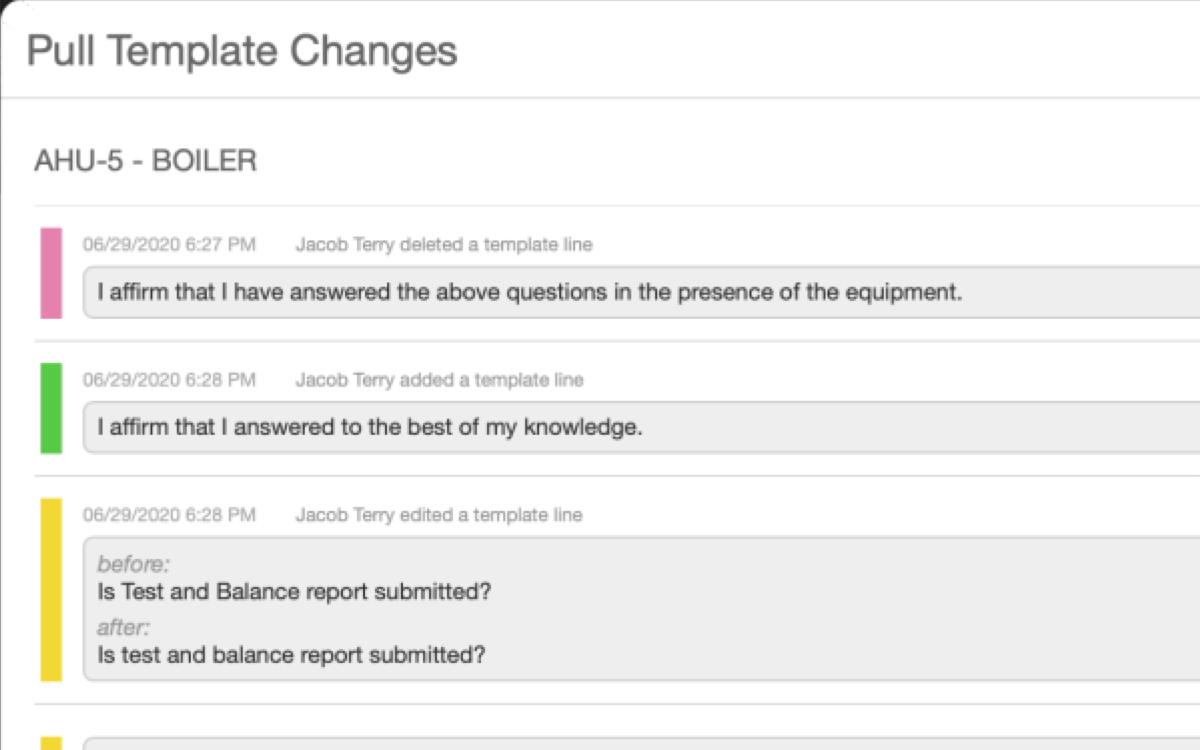
Push Changes allows you make edits to a template, such as adding lines or editing questions, and then “push” those changes to the checklists or tests that were created from that template.

With this release you can now also “pull” changes, meaning you can bring a checklist or test up to date with its associated template directly from the checklist or test. You can even select multiple checklists or tests in a list and “pull” changes to all of them.

Even better, we now show information about the associated template directly on the checklist and test page. This makes it easy to know when a checklist or test differs from the template it was created from and also provides a convenient link to that template.

You can now easily see whether a checklist or test differs from its associated template.

Prior to this release we also expanded push changes to allow pushing from account templates. The sum of these releases is a complete picture for pushing and pulling changes, allowing a checklist or test to be brought up to date with its associated template, regardless of whether it’s a project or account template and whether you are starting from the template or the checklist or test.

We hope you like this feature. See you next week!

One note: pushing and pulling changes are limited to upgraded accounts.


Filter Project Activity by Date – Customer Appreciation Summer Week 3

This week’s release in our Customer Appreciation Summer I’m personally excited about, as it makes the Project Activity page a lot more useful – you can now filter by date range! As part of that, we have also changed how the activity page works so that it no longer requires you to navigate day-by-day.

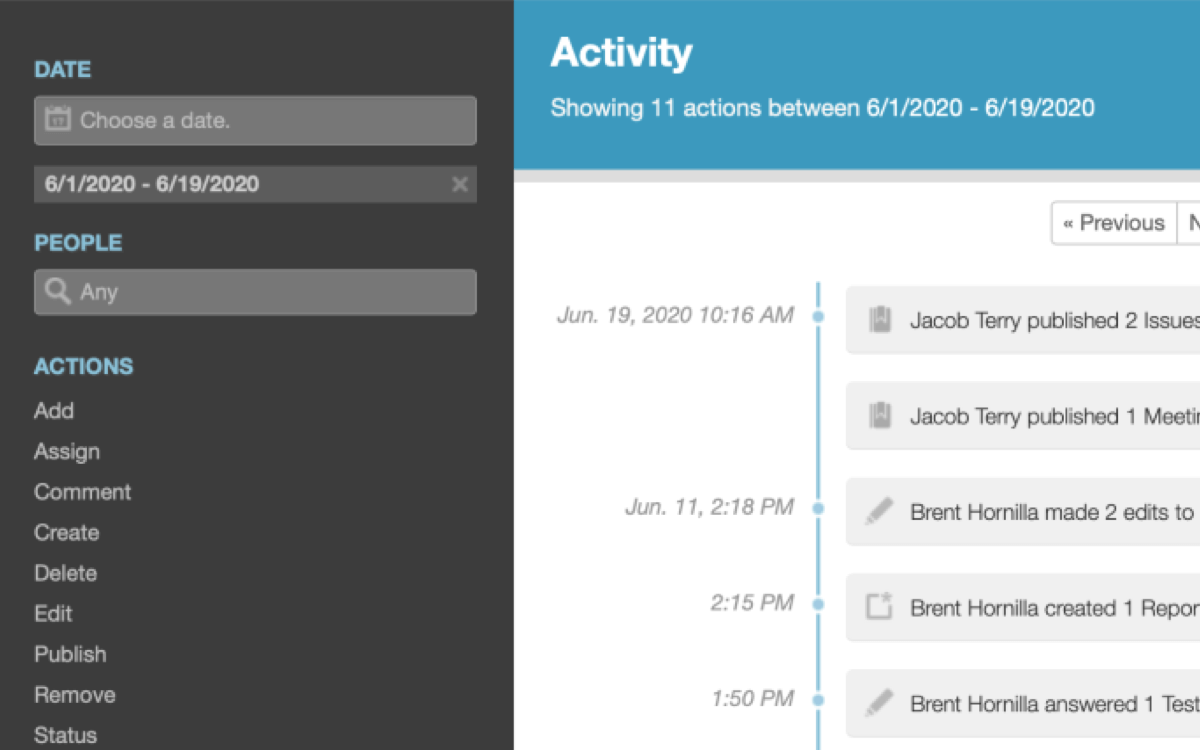
Filtering activity to a date range

Previously the project activity page could only show one day’s activity at a time. This approach made it tedious to use the activity page to answer common questions like “When did this user last make changes?” and even “What’s happened recently?”.

Now Project Activity works more like a newsfeed, showing you the most recent activity regardless of when that activity occurred. You can page through activity to see older actions. Using the new Date filter, you can filter activity to specific time periods. Combine date filtering with the other filters to answer detailed questions such as “What issue comments did this user create last month?”.

We hope you like it. See you next week!

Phone Numbers – Customer Appreciation Summer Week 2

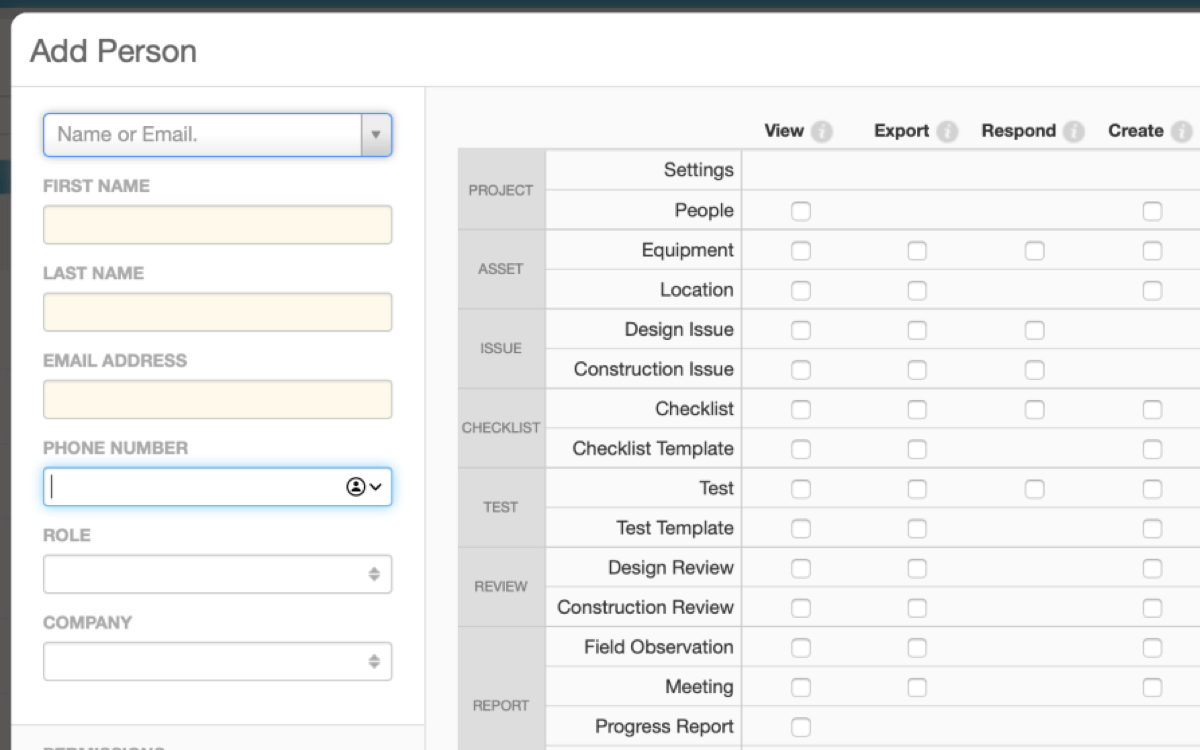
This week’s release for Customer Appreciation Summer is a simple but useful improvement: we’ve added a phone number field throughout the application. Technically this field was always there (you could set it on your profile page) but we didn’t show it in many places.

The “Phone Number” field is now available when adding users

The phone number field is now available where you would expect:

  • When adding a new user to a project or account
  • When viewing a user in a project or account
  • When editing a user in a project or account
  • When exporting account or project users
  • When adding a person to a Meeting distribution list
  • When viewing a Meeting distribution list
  • When exporting or PDF’ing a Meeting distribution list

As a bonus, we also updated the date for Meetings to include the year. A tiny feature but highly requested!

The year: small but important

See you next week!

A New Feature Every Week – Customer Appreciation Summer

The 3rd Annual Customer Appreciation Summer starts this week! Just like in past years, we’ll be releasing new features all summer long. In fact, we will be releasing one new feature every week for twelve weeks. That’s twelve new features in three months. Perhaps more importantly, these features have been sourced entirely from customer requests and include some of our most requested features.

Many of these features are the relatively small improvements that make the day-to-day experience of using the software more pleasant. Don’t worry, though – there’s a few bigger ones in there, too. Here’s just a few of the features that will be coming:

  • Deleting projects
  • Attaching files to progress reports
  • Showing users’ role and company next to their comments.

The First Weekly Feature – Editing Names and Titles

We are kicking off with one of the more highly requested features, available today – the ability to edit a user’s name after you have invited them. Now any time prior to the user accepting your invite you’ll be able to edit their name to correct any misspellings or other issues you discover. While we were doing this we also added an optional “Title” field to a user’s profile which will be shown if set.

More To Come

When a customer makes the decision to use CxAlloy TQ they are not only investing in the CxAlloy TQ of today but also what it will be in the future. We hope we are living up to that investment and are grateful for your trust and confidence in us. See you next week!